I Made Gemini Turn Every Meeting Into Google Tasks (No Code)
What if every Google Meet call you joined ended with your to-do list already written?
That’s how my meetings work now. Gemini takes the notes, a Workspace Studio flow reads them, and shortly after the call, the things I agreed to do show up in Google Tasks. Each one carries enough detail that I can pick it up days later without opening the notes again. It runs on my daily standup, my one-to-one with my manager, and every other meeting on my calendar.
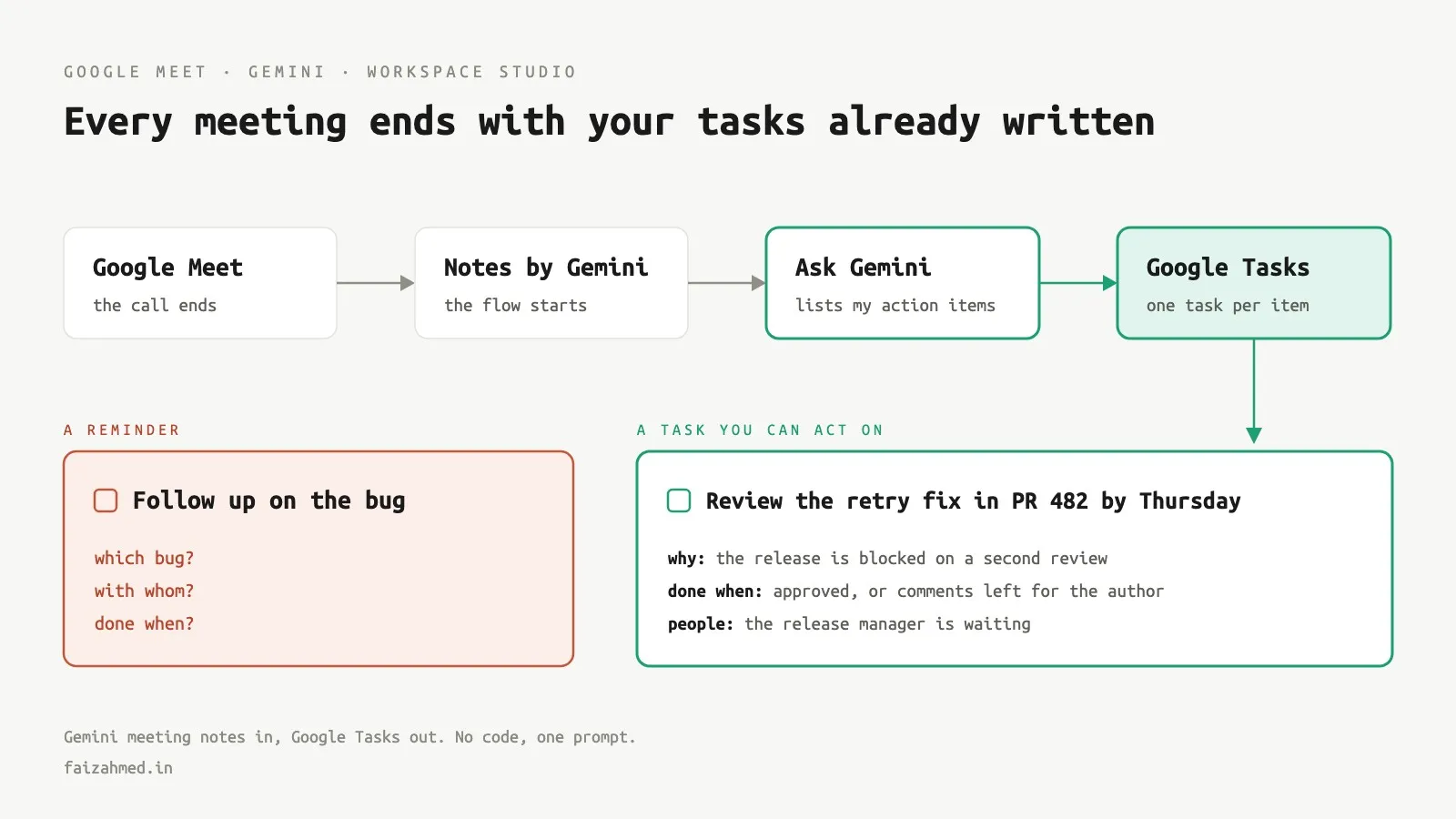
This is what one of those tasks looks like. I’ve changed the details, but the format is exactly what the prompt in this post produces:
Review the retry fix in PR 482 before Thursday's release

Why: the release is blocked until the retry change has a second reviewer.
What to do: review PR 482 in the payments repo; check the backoff values against staging.
Done when: approved, or comments left for the author.
People: raised by the tech lead; the release manager is waiting.
Deadline: Thursday
From Daily Standup: <link to the meeting notes>
Google does ship something similar, a built-in flow called Add my action items to Tasks with Gemini. I turned it off. Its tasks were too thin to act on, things like “Follow up on the bug”, so I still had to dig through the notes to work out which bug and who was waiting.
So I built my own in Google Workspace Studio. There’s no code involved, and once you have the prompt, a flow takes about ten minutes to set up.
The short version: copy the prompt below, build the four-step flow in Build the first one, and test it on a meeting you’ve already had. You’ll need a Google Workspace work or school account with Gemini taking notes in your meetings. Near the end there are more ideas built from the same pieces, from inbox triage to a running list of your wins.
The three flows I run
| Flow | Runs on | What ends up in Google Tasks |
|---|---|---|
| Standup to Tasks | My daily standup | My action items, with the PR numbers and details people mentioned |
| 1:1 to Tasks | My one-to-one with my manager | My items, follow-ups on what my manager offered to do, and the goal each one counts toward |
| Catch-all | Every other meeting | My items, plus a “Follow up with X” task whenever someone promised me something |
All three work the same way:
flowchart LR
    A["Meeting ends"]:::context --> B["Gemini writes<br/>the notes"]:::context
    B --> C["When meeting<br/>outputs are ready"]:::starter
    C --> D["Ask Gemini:<br/>list my action items"]:::gemini
    D --> E["Repeat for each"]:::logic
    E --> F["Create a task"]:::action
    classDef context fill:#DBEAFE,stroke:#2563EB,stroke-width:1.5px,color:#1E293B
    classDef starter fill:#FEF3C7,stroke:#D97706,stroke-width:1.5px,color:#1E293B
    classDef gemini fill:#EDE9FE,stroke:#7C3AED,stroke-width:1.5px,color:#1E293B
    classDef logic fill:#E2E8F0,stroke:#475569,stroke-width:1.5px,color:#1E293B
    classDef action fill:#D1FAE5,stroke:#059669,stroke-width:1.5px,color:#1E293B
The colours mean the same thing in every diagram in this post:
- Before the flow
- Starter
- Gemini step
- Logic
- Action
Build the first one
Start with your standup. It happens every day, so you’ll find out quickly whether it works.
- Open studio.workspace.google.com and create a new flow.
- For the starter, pick When meeting outputs are ready. Tick Notes by Gemini, choose Specific meetings, and select your standup.
- Add an Ask Gemini step and paste in the prompt from the next section. Set the response format to List and the list format to Task data.
- Add a Repeat for each step and point it at the list from step 3.
- Inside the loop, add Create a task. Use the loop’s task title and task description, and set the date to Day the run starts.
- Click Test run on a meeting you’ve already had, then open Google Tasks and read what it made. If you’re happy with it, turn the flow on.
The rest of this post explains why those settings matter and what the other two flows add.
The prompt
This is my standup prompt with my name swapped out. Put in your own name, plus the ways people shorten it.
Read the meeting notes document linked at the end. Read all of it, including the
Details section and any transcript, not just "Suggested next steps".

List every action item that is mine: assigned to <Your Name> or <short form> or
<full name>, or something I said I would do. Include items where I must review,
unblock or follow up. Skip items owned only by others.

Return one task per action item.
Task title: starts with a verb, under 80 characters.
Task details, with a line break before each label:
Why: <the problem or decision behind it, 1 to 2 sentences>
What to do: <concrete steps, with every specific that was said: issue or PR
numbers, repo, screen, file, environment, numbers, links>
Done when: <the expected result, or what to report back and to whom>
People: <who raised it, who is waiting, who to ask; never me>
Deadline: <only if one was stated>

Rules: write in English. Use only what was said in the meeting; leave a line out
rather than guess. Merge duplicates. If I have no action items, return an empty
list.

Meeting: {Step 1: Meeting title}
Date: {Step 1: Meeting start time}
Notes document: {Step 1: Link to meeting output}
Insert the {Step 1: ...} parts with the Variables button instead of typing them, so Studio fills them in for each meeting.
Why it’s written like that
Every line is there to head off a particular kind of useless task.
| The line | What it prevents |
|---|---|
| “Read all of it … not just Suggested next steps” | The summary at the bottom of the notes drops details like PR numbers. The Details section keeps them. |
| Every version of your name | People use your first name. If the prompt only knows your full name, those items get skipped. |
| “Something I said I would do” | Lots of action items are never formally assigned. Someone just says “I’ll take a look”. |
| “Review, unblock or follow up” | These are the ones where somebody else is waiting on you. |
| Why, What to do, Done when, People | This is what makes a task usable three days later, after you’ve forgotten the meeting. |
| “Never me” in People | Without it, you turn up as a stakeholder in your own task. |
| “Leave a line out rather than guess” | A missing deadline is fine. An invented one is worse than none. |
| “Return an empty list” | When you have nothing, the loop runs zero times. Otherwise you can end up with a task that says “No action items”. |
The settings that matter
Use Notes by Gemini, not Transcript. The starter can fire on transcripts, on Notes by Gemini, or on both (Google added that option in May 2026). The Transcript trigger has never fired for me, not once, while Notes by Gemini fires every time. If your flow seems to do nothing, check this first.
Pick specific meetings. For a recurring meeting, the flow runs on every occurrence, so you only attach your standup once.
Leave Workspace on and web search off. Gemini has to open the notes document in your Drive. It doesn’t need the web for that.
Set the response to List, then Task data. A text response comes back as one block. A list gives the loop something to step through, and the Task data format splits each item into a title and a description that map straight onto the task. (The other list formats are Simple list and Email data.)
The loop stops at 100 items. Repeat for each only runs on the first 100 items in a list, which is far more than any meeting produces.
Link back to the notes. In the task details, I add From <Meeting title>: <Link to meeting output> after the description, so when a task isn’t clear, the source is one click away.
Date it the day the run starts. If someone mentioned a deadline, it goes in the details. The task itself lands on today’s list, and I sort it from there.
One flow for every other meeting
The standup and the 1:1 have their own flows. Everything else goes through a catch-all:
flowchart LR
    A["When meeting outputs<br/>are ready<br/>(all meetings)"]:::starter --> B{{"Check if the title is<br/>not Daily Standup<br/>and not 1:1"}}:::logic
    B -->|true| C["Ask Gemini:<br/>my items and<br/>follow-ups"]:::gemini
    C --> D["Repeat for each"]:::logic
    D --> E["Create a task"]:::action
    classDef context fill:#DBEAFE,stroke:#2563EB,stroke-width:1.5px,color:#1E293B
    classDef starter fill:#FEF3C7,stroke:#D97706,stroke-width:1.5px,color:#1E293B
    classDef gemini fill:#EDE9FE,stroke:#7C3AED,stroke-width:1.5px,color:#1E293B
    classDef logic fill:#E2E8F0,stroke:#475569,stroke-width:1.5px,color:#1E293B
    classDef action fill:#D1FAE5,stroke:#059669,stroke-width:1.5px,color:#1E293B
The Check if step is what keeps this from making a mess. The catch-all starts on all meetings, and that includes the standup and the 1:1. Without the check, those meetings would run through two flows and every item would show up twice. Check if only lets the run carry on when its conditions are true, and everything after it sits inside it.
The weak spot is that it matches on the meeting title. If someone renames the standup on the calendar, both flows pick it up. So whenever I add a dedicated flow, I add its title to this check as well.
The prompt is the standup one with one extra line:
- everything someone agreed to do for me, as a task titled
  "Follow up with <their first name>: <item>".
Outside the standup, the things that slip are often promises other people made to you. This line turns each one into a task with the person’s name in the title, so you know exactly who to chase. A second rule, “Don’t add a follow-up for anything that is already one of my tasks”, stops something like “I’ll review your PR” from turning into two tasks.
The 1:1 flow, and why it reads my goals sheet
My one-to-one with my manager needs more context than the other meetings. A lot of what we talk about only makes sense next to things that aren’t in the meeting: my goals for the review period, my manager’s notes on how I’m tracking, and a shared folder with the sheet where goals get scored and a document explaining how the scoring works.
The flow has the same four steps as the standup. The difference is in the prompt, which points Gemini at those documents:
Background only, not a source of tasks: my major and minor performance goals
are in this sheet: <goals sheet link>. My manager's review doc is here:
<review doc link>. Use only the parts about me.
and adds one more field to each task:
Goal: <the major or minor goal from my goals sheet that this task supports,
and which kind it is; only if one clearly applies>
“Background only, not a source of tasks” keeps those documents as context. Without it, Gemini would read the goals sheet, notice a goal that isn’t finished, and create a task for it every single week.
“Use only the parts about me” is there because a manager’s review doc usually covers more people than just you.
The Goal field is the most useful part of this flow. Every task from a 1:1 now says which goal it counts toward and whether that goal is a major or a minor one. When review time comes round, the evidence is already sorted, and each task links back to the conversation where it was agreed. The “only if one clearly applies” clause stops Gemini forcing a match, which would make the evidence look stronger than it really is.
The catch-all’s follow-up line is in this prompt too, so when my manager offers an intro or an approval, it becomes a “Follow up with …” task instead of something that quietly gets forgotten.
Before you switch a flow on
- A test run isn’t a dry run. It takes real actions, so it creates real tasks. Run it on a past meeting, read every task as if you’d missed the meeting, delete them, adjust the prompt, and go again. I only turn a flow on after a clean test run.
- Test with Notes by Gemini selected, not Transcript.
- Write one prompt per kind of meeting. A standup cares about PRs and blockers. A 1:1 cares about commitments and goals.
- The flow only knows what’s in the notes. If Gemini’s notes miss something, the task will too.
- Read the email Google sends when a flow is turned on. It lists what the flow can do on your behalf, which makes a good last check.
More you can build with the same pieces
Meetings are where I started, but the same pieces (a starter, a Gemini step, a bit of logic and an action) cover a lot more of the working day. These are ideas, not flows I run yet, and every starter and step in them is a real one from Google’s step guide.
A brief before each meeting
flowchart LR
    A["Based on a meeting<br/>30 min before"]:::starter --> B["Ask Gemini:<br/>who, what we last<br/>discussed, what to reread"]:::gemini
    B --> C["Notify me in Chat"]:::action
    classDef starter fill:#FEF3C7,stroke:#D97706,stroke-width:1.5px,color:#1E293B
    classDef gemini fill:#EDE9FE,stroke:#7C3AED,stroke-width:1.5px,color:#1E293B
    classDef logic fill:#E2E8F0,stroke:#475569,stroke-width:1.5px,color:#1E293B
    classDef action fill:#D1FAE5,stroke:#059669,stroke-width:1.5px,color:#1E293B
Half an hour before a meeting, Gemini works out who’s in it, what you discussed last time and which docs or threads are worth rereading, then sends you that in Chat.
A Monday inbox recap
flowchart LR
    A["On a schedule<br/>Mondays 9:00"]:::starter --> B["Recap unread emails<br/>since Friday"]:::gemini
    B --> C["Notify me in Chat"]:::action
    classDef starter fill:#FEF3C7,stroke:#D97706,stroke-width:1.5px,color:#1E293B
    classDef gemini fill:#EDE9FE,stroke:#7C3AED,stroke-width:1.5px,color:#1E293B
    classDef logic fill:#E2E8F0,stroke:#475569,stroke-width:1.5px,color:#1E293B
    classDef action fill:#D1FAE5,stroke:#059669,stroke-width:1.5px,color:#1E293B
A summary of the weekend’s email lands before you open Gmail, so you decide what needs attention first instead of reading in the order things arrived.
Email requests straight into Tasks
flowchart LR
    A["When I get an email<br/>from my manager<br/>or with a label"]:::starter --> B["Decide:<br/>is this asking me<br/>to do something?"]:::gemini
    B --> C{{"Check if<br/>true"}}:::logic
    C -->|yes| D["Ask Gemini:<br/>list the asks"]:::gemini
    D --> E["Repeat for each"]:::logic
    E --> F["Create a task"]:::action
    classDef starter fill:#FEF3C7,stroke:#D97706,stroke-width:1.5px,color:#1E293B
    classDef gemini fill:#EDE9FE,stroke:#7C3AED,stroke-width:1.5px,color:#1E293B
    classDef logic fill:#E2E8F0,stroke:#475569,stroke-width:1.5px,color:#1E293B
    classDef action fill:#D1FAE5,stroke:#059669,stroke-width:1.5px,color:#1E293B
This is the meeting flow pointed at your inbox. Decide makes the judgement call on whether an email is asking you for something, and Check if acts on its answer.
“Got it” replies in Chat
flowchart LR
    A["When I'm mentioned<br/>in Chat"]:::starter --> B["Decide:<br/>is this a request?"]:::gemini
    B --> C{{"Check if<br/>true"}}:::logic
    C -->|yes| D["Create a task"]:::action
    D --> E["Reply to a message:<br/>Got it, tracked"]:::action
    classDef starter fill:#FEF3C7,stroke:#D97706,stroke-width:1.5px,color:#1E293B
    classDef gemini fill:#EDE9FE,stroke:#7C3AED,stroke-width:1.5px,color:#1E293B
    classDef logic fill:#E2E8F0,stroke:#475569,stroke-width:1.5px,color:#1E293B
    classDef action fill:#D1FAE5,stroke:#059669,stroke-width:1.5px,color:#1E293B
When someone mentions you with a request, the flow makes a task and replies, so they know it’s been seen. Replies need approval when people outside your organisation are in the thread, which is a sensible default.
Filing invoices
flowchart LR
    A["When I get an email<br/>with an invoice<br/>attached"]:::starter --> B["Add email<br/>attachments to Drive"]:::action
    B --> C["Extract:<br/>vendor, amount,<br/>due date"]:::gemini
    C --> D["Add a row to<br/>the expenses sheet"]:::action
    classDef starter fill:#FEF3C7,stroke:#D97706,stroke-width:1.5px,color:#1E293B
    classDef gemini fill:#EDE9FE,stroke:#7C3AED,stroke-width:1.5px,color:#1E293B
    classDef logic fill:#E2E8F0,stroke:#475569,stroke-width:1.5px,color:#1E293B
    classDef action fill:#D1FAE5,stroke:#059669,stroke-width:1.5px,color:#1E293B
Extract pulls the vendor, amount and due date into separate fields, so the sheet gets clean columns rather than pasted email text.
A running list of your wins
flowchart LR
    A["When meeting outputs<br/>are ready<br/>(all meetings)"]:::starter --> B["Ask Gemini:<br/>what did I ship,<br/>decide or unblock?"]:::gemini
    B --> C{{"Check if<br/>not empty"}}:::logic
    C -->|yes| D["Add to a doc:<br/>Wins"]:::action
    classDef starter fill:#FEF3C7,stroke:#D97706,stroke-width:1.5px,color:#1E293B
    classDef gemini fill:#EDE9FE,stroke:#7C3AED,stroke-width:1.5px,color:#1E293B
    classDef logic fill:#E2E8F0,stroke:#475569,stroke-width:1.5px,color:#1E293B
    classDef action fill:#D1FAE5,stroke:#059669,stroke-width:1.5px,color:#1E293B
After each meeting, Gemini writes a line or two about anything you shipped, decided or unblocked, and adds it to a doc. Paired with the 1:1 flow, it should take most of the pain out of writing your self-review.
Protecting focus time
flowchart LR
    A["On a schedule<br/>weekdays 8:30"]:::starter --> B["Block time:<br/>2 hours of deep work"]:::action
    classDef starter fill:#FEF3C7,stroke:#D97706,stroke-width:1.5px,color:#1E293B
    classDef gemini fill:#EDE9FE,stroke:#7C3AED,stroke-width:1.5px,color:#1E293B
    classDef logic fill:#E2E8F0,stroke:#475569,stroke-width:1.5px,color:#1E293B
    classDef action fill:#D1FAE5,stroke:#059669,stroke-width:1.5px,color:#1E293B
Two steps that book two hours of deep work every weekday morning. Block time can book anything from 15 minutes to 4 hours.
Can you use Workspace Studio?
Some starters and steps, the meeting one included, only work on work or school accounts. The meeting starter is available on Business Starter, Standard and Plus, Enterprise Standard and Plus, and the Education editions (Workspace Updates). If you can’t see Studio at all, ask your Workspace admin.
Where to start
Don’t try to build all of this at once. Build the standup flow, paste in the prompt with your own name, and test it on yesterday’s meeting.
If the tasks it makes read like something you’d have written yourself, turn it on. Then add the next one.